
Structured Input and Nicely Styled Output in Claude
On 10 November, Anthropic announced support for the MCP Apps extension in Claude . The Model Context Protocol (MCP) is the open standard agents use to work with the tools of other applications. With its MCP Apps extension, a tool brings its own interactive view, which Claude shows right in the chat. The extension is available in popular frameworks.
For .NET, the proof of concept behind this article uses the MCP Apps package of the official C# SDK. For Node and TypeScript, the extension’s own SDK provides helpers for the MCP server. The official Python SDK ships the extension built in. FastMCP supports it in Python through its Interactive Tools. According to its maintainers, the official Go SDK has all the primitives MCP Apps need.
For me, this is a long-awaited feature. I have been experimenting with MCP Apps since the extension was first announced. For a long time there was no real business case for it, because AI chat clients lacked support for it.
I have handed all of my office work over to AI. One use case is managing my incoming and outgoing invoices in Vouchers AI , through the application’s connector in Claude. Connectors link Claude to an application’s MCP server. To reach my mail in Microsoft 365, I use Work IQ, Microsoft’s layer over the mail, calendars, chats and files of a Microsoft 365 tenant. With the MCP Apps extension, my data handling in the Claude app becomes more structured.
To book incoming invoices, Claude finds them in the mailbox, reads each attachment, checks the books for a duplicate, suggests an account and shows a preview of the booking. Then the agent asks whether to book and waits for a yes in the text box. With six invoices, that question comes six times, each time answered with a typed yes.
This article and a proof of concept were made together. I extended Vouchers AI with three views, chosen by how I actually use it, and tested them in claude.ai. One of the three puts all invoices on one screen, each with its own button to book it.
MCP Apps in the chat with Claude
An MCP App consists of a tool, a view whose address starts with ui://, and the HTML of that view. When Claude calls the tool, Claude fetches the view from the MCP server and shows it in a sandbox, a shielded frame, right next to the tool’s result. The view talks to the MCP server through Claude. It calls the server’s tools itself, loads new data and tells the model what happened inside it.
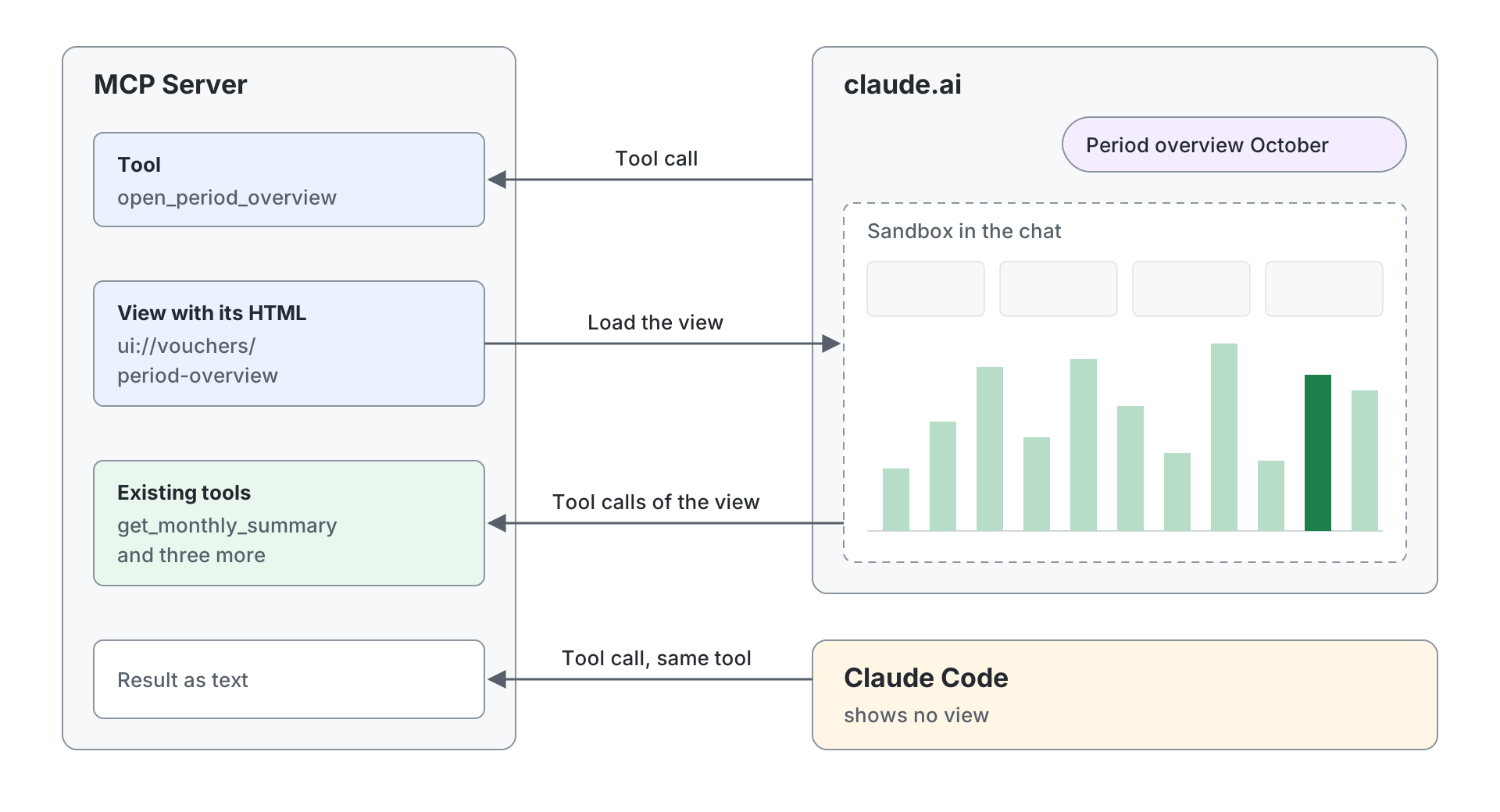
The existing tools stay as they were. Claude Code shows no view and calls the same tool as text. In my bookkeeping, Claude Code therefore keeps booking, searching and reporting through the existing tools. Each of the three new tools names them in its description, the text Claude uses to choose a tool. That counts twice for me: 640 of the 1,073 tool calls I analysed came from Claude Code.
The rule behind this comes from an earlier attempt. On a similar MCP server, claude.ai listed a tool with a form as an Interactive UI tool and answered a direct tool call with “Tool not found”. Since then my rule has been: a view is never the sole way into a feature. A plain tool does the same work in one tool call. How often the work happens decides which work gets a view.
Use cases from three months of tool calls
A view pays off where the same work keeps coming back. The MCP server records how often that happens: every tool call to my MCP server writes one row to a table, with the tool, the time, the duration, the outcome and the client. When the agent calls a tool, that step is a tool call; the client is the application the agent runs in. From August to November this added up to 1,073 tool calls.
Of these, 182 came through the connector in claude.ai and 251 without a client name. Claude Desktop uses the same connector as claude.ai, so the table cannot tell the two apart. The analysis groups the tool calls into sessions, starting a new session after 30 minutes of silence. That gave 62 sessions, with a median of eight tool calls and 201 in the longest.
Booking supplier invoices from the mailbox leads the ranking, with 434 tool calls on 30 days in 37 sessions. Next come searching and checking vouchers with 308 tool calls on 31 days in 45 sessions, and the figures of a period with 247 tool calls on 15 days in 21 sessions. Outgoing invoices came to 31 tool calls on two days, todos to 10 on five days. Routines that ran on a schedule on 18 days work unattended. Nobody would look at a view there, so they do not count for this selection.
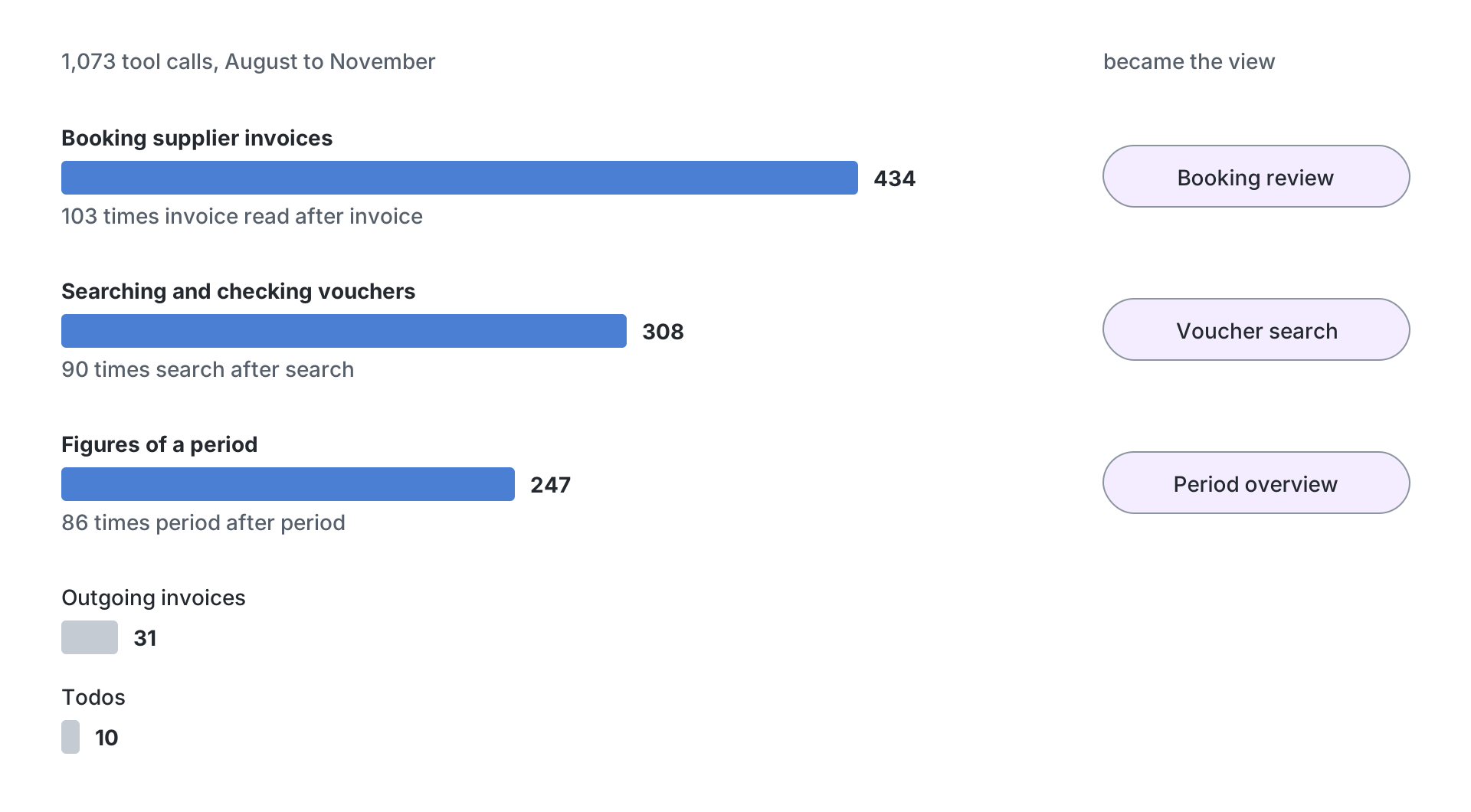
The order of the calls says more than the totals. When booking, reading an invoice document came directly after reading the previous one 103 times. Between preview and booking stood a yes in the text, one invoice after another. When searching, a search followed a search 90 times, and a voucher in detail followed the previous one 82 times. The figures of a period are the largest group among the tool calls from claude.ai and those without a client name. In total, a tool call for the figures of a period came directly after the previous one 86 times.
Where the same tool call repeats back to back, a person is paging through data in text that would fit on one screen. That is why the three most frequent kinds of work became three views: a booking review, a voucher search and a period overview.
Three views for the most frequent work
Each of the three views has its own tool behind it. As soon as a prompt asks for that work, Claude opens the matching view through its tool.
The booking review
Claude opens the booking review after the agent has read the invoices from the mailbox. Each invoice appears as its own card, with the account as a picker and the date, text, booking text, net amount and VAT as fields you can edit. A possible duplicate shows right on the card. Every change sends the row through the booking preview again.
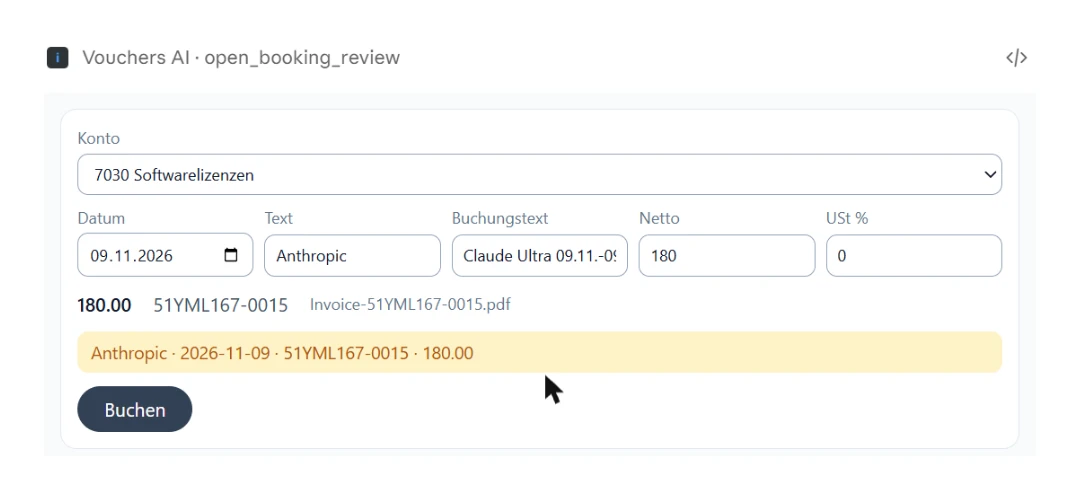
The Buchen (book) button on each card calls the existing booking tool, in line with the booking mode, the setting that decides whether a voucher is written right away or waits for a yes. After a booking, the view tells the model which vouchers are booked, so Claude books none of them a second time. The decision for each invoice is one click on its own card.
The voucher search
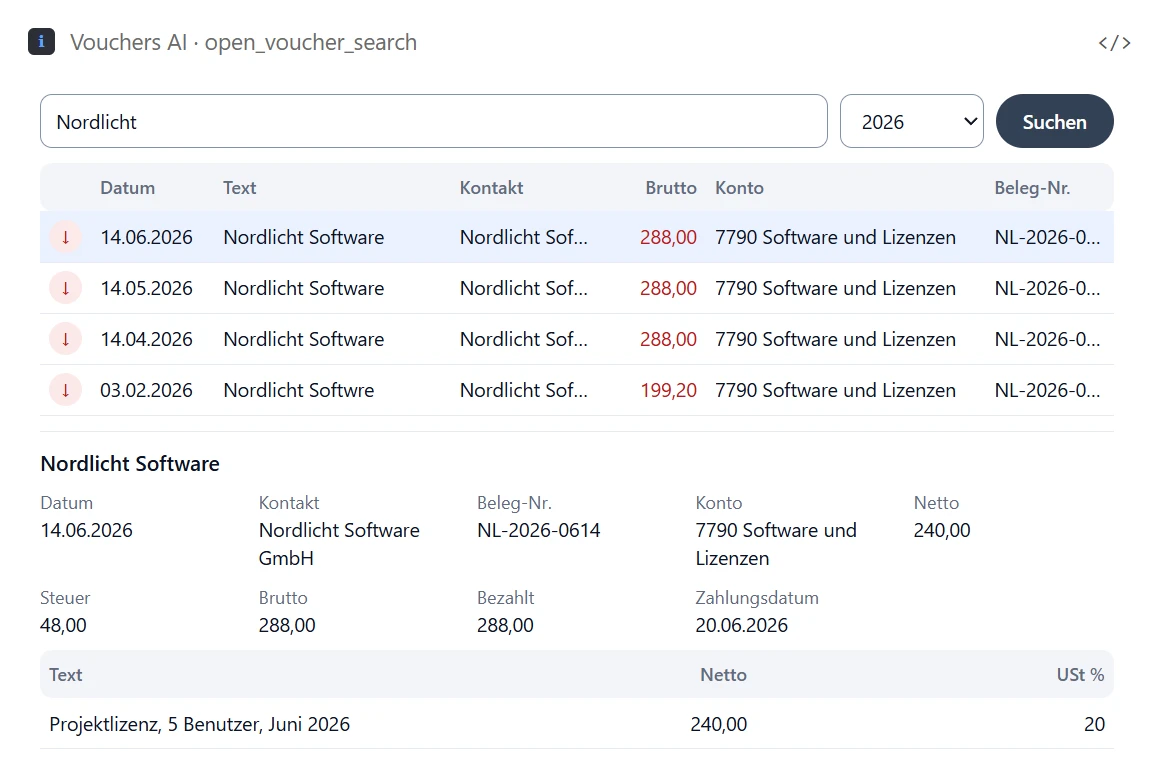
The voucher search has a search field, a year filter and a list of hits. A click on a hit opens the voucher’s details, with its entries, in a panel below. A new search starts right in the view, with no new message to Claude.
The period overview
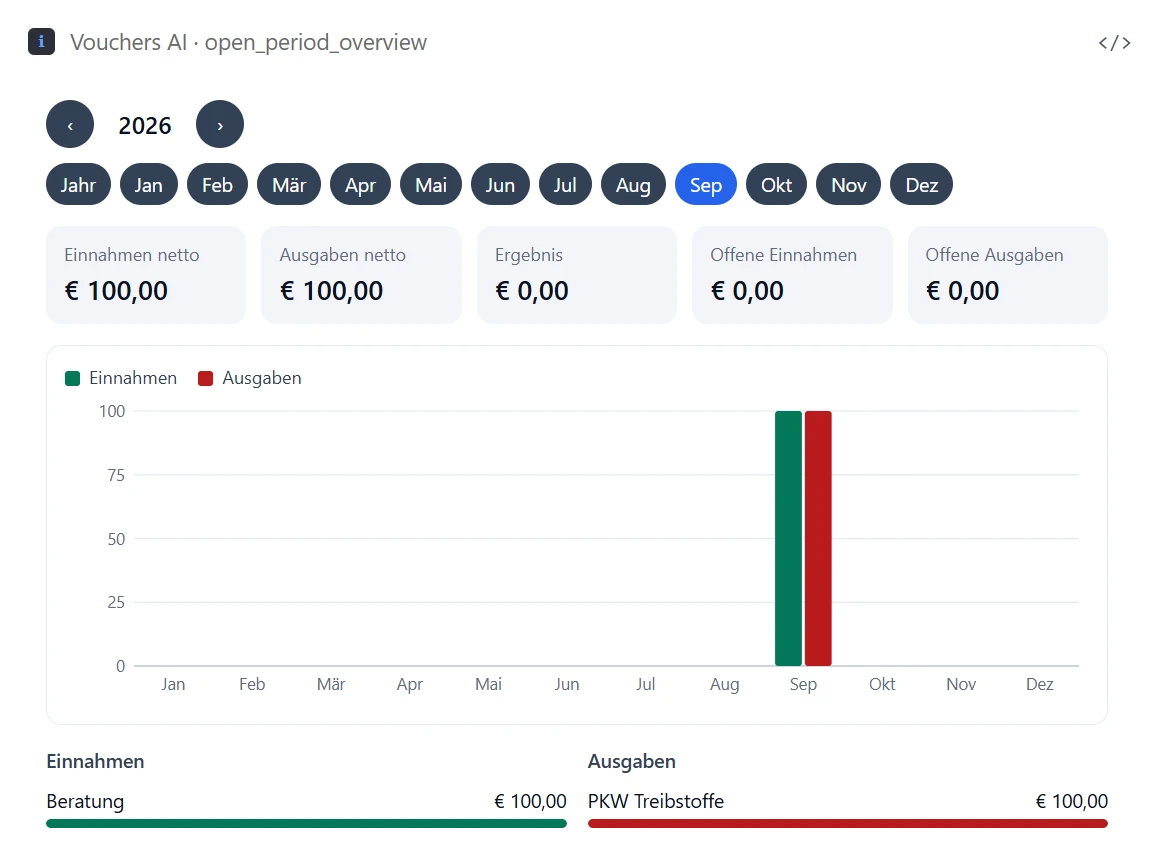
The period overview shows the figures of a year or a month in tiles: net income, net expenses, result and open amounts. Below them are bars for every month of the year and the largest income and spending categories. A click on another month reloads all figures from inside the view, through four existing tools of the MCP server. The test showed how the three views behave in claude.ai.
The test in claude.ai
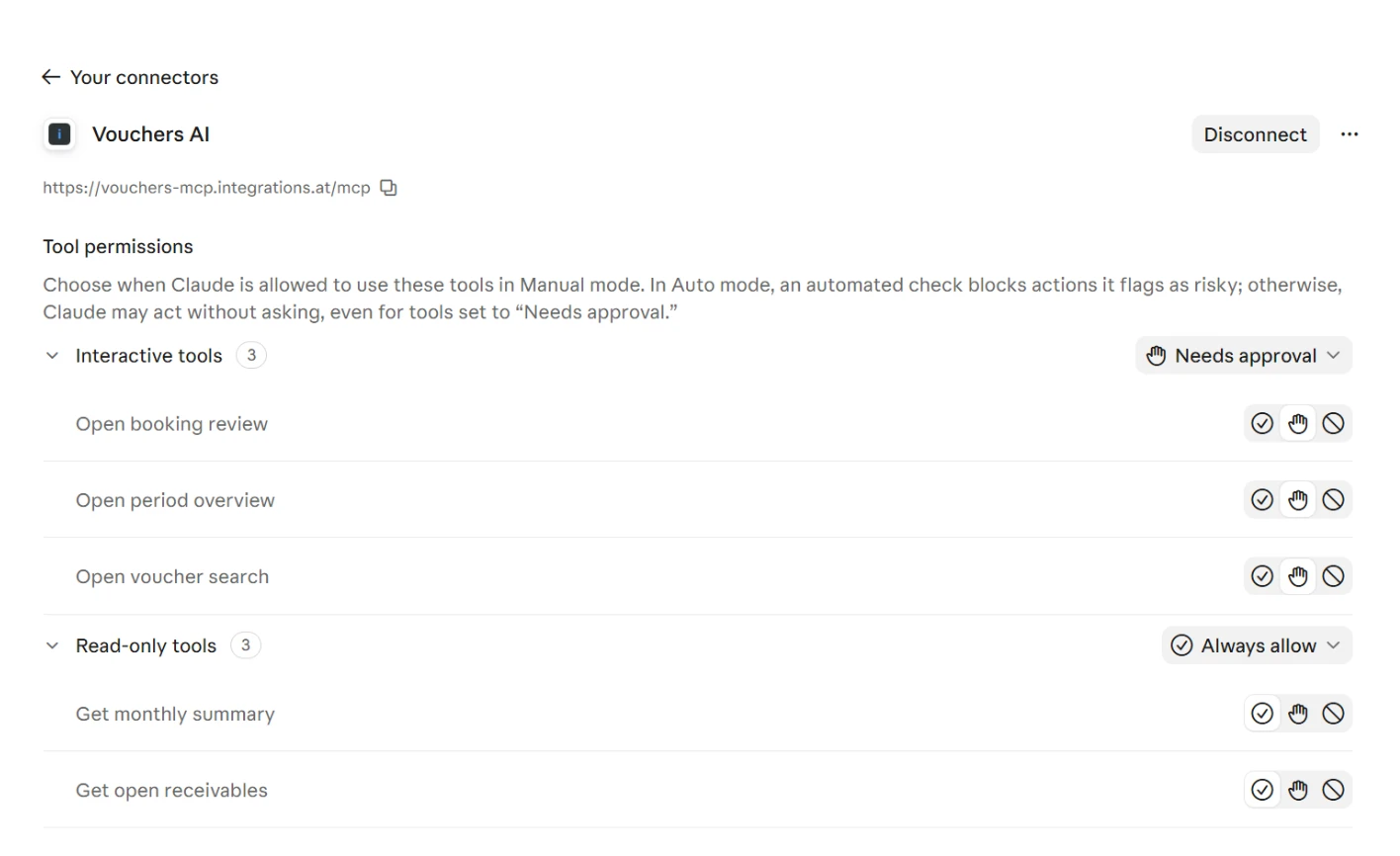
After the deploy, claude.ai lists the connector’s three new tools in a group of their own, Interactive tools, set to Needs approval by default. Next to it are the groups Read-only tools and Other tools. In Manual mode, Claude asks for permission before it opens a view.
Asked for the period overview for October, Claude showed the view in the chat with October selected. A click on September reloaded tiles, bars and categories from inside the view, with no new message and no approval. In the voucher search, a new search in the view brought new hits. The click on a row loaded the details panel and let the view grow with it.
For the booking review, the prompt asked Claude to read the month’s invoices from the mailbox and open the review, and to book nothing, because I would book in the review myself. Claude read the mailbox and opened the view with six invoices. Every card showed its duplicate, because all six were in the books. Nothing was booked. Nobody pressed the Buchen button in the test with real data, on purpose.
Below the view, Claude wrote its own analysis. The agent noted that all six invoices were booked and that Buchen in booking mode Auto would write a duplicate at once. It found a wrongly linked todo on one card, an exchange rate from the wrong day and an invoice dated in October. And it named the mails it had left out: an order confirmation, an invoice for zero euros and an outgoing invoice.
When you reopen the conversation later, Claude rebuilds the view from its HTML. The voucher search came back smaller, with its own scrollbar, and grew again after the next search. Whatever a view should show again on reopening therefore belongs on the MCP server.
The agent’s text next to the view
Claude writes text with every view. In the voucher search, the agent repeated the hits as a table, in English. In the conversation about the booking review, its text found what the view alone does not show, among it the wrongly linked todo.
That todo was a bug in the view. The view linked open todos by supplier name and so attached an invoice to the todo for another, missing invoice from the same supplier. A click on Buchen would have closed that todo by mistake. Since the fix, a todo on the card needs its ID in the row.
A second fix concerned the period overview. In its first version, its bars came from a different query than the tiles and showed more than double the tile above them for one month. Bars and tiles now read from the same monthly summary.
So plan the agent’s text next to the view from the start. It checks what lies behind the view’s figures and catches errors a card alone does not show.
Your own website in a view
Shortly before this test, Sean Strong of Anthropic wrote on X: “You can now embed your website in Claude and have it be interactable. You can do this via MCP apps, where we’ve enabled frame_domains support for verified plugins.” This means a product’s website that a view loads in a frame, such as the application’s editor or dashboard. To do so, the view declares every domain of the website in frameDomains. It may load the website once Claude allows these domains for the connector.
According to Claude’s documentation, a connector from the Connectors Directory needs a Verified listing that allows the domain. For a custom connector, which a user adds by its URL, Claude asks in the conversation whether the user allows the domains. Claude currently offers this to a limited set of organizations, in selected conversations.
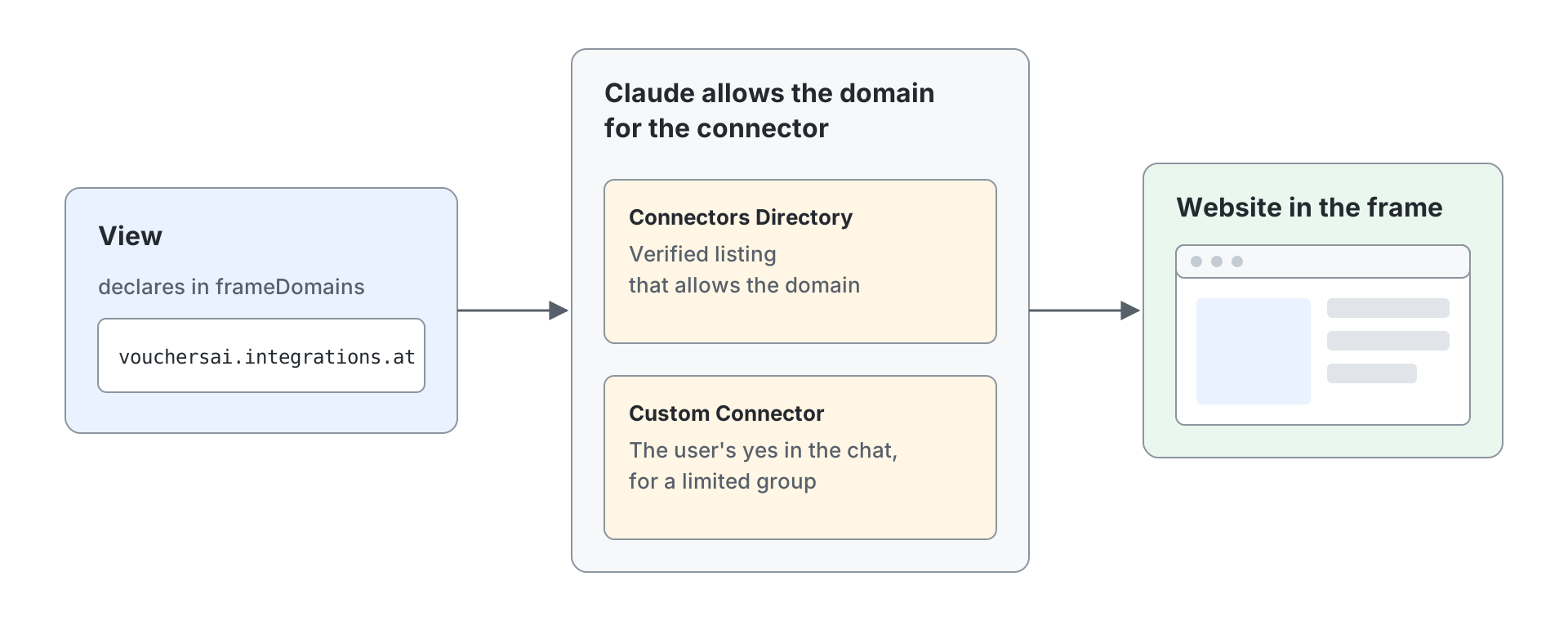
For the test, the MCP server got a fourth MCP App. Its view loads the bookkeeping web app in a single frame and declares its domain in frameDomains. After the deploy, the agent did not know the new tool at first: in a new chat, Claude answered that the connector had no such tool and opened the period overview. It took Refresh tools list under Customize > Connectors before Claude could call the tool in a new chat. The view then appeared as an empty grey panel.
The claude.ai console gave the reason: the web app’s domain was “Not among the sites that Claude allows this connector to show”. For my custom connector in my account, Claude therefore does not show the website in the view. This matches the post, which names frame_domains for verified plugins, and Claude’s documentation. Claude shows views that embed no website for every connector in the chat, like the three views of this test on the same connector.
The first step with MCP Apps
Three steps fit into this week:
- Count which work your employees do most often in the chat with your application. If your MCP server logs its tool calls, an analysis by sessions and by consecutive tool calls gives you the ranking.
- Pick the work where the same tool call repeats back to back or a person approves row by row. That is where the first view pays off. The existing tools stay for clients without MCP Apps.
- Test the view with a custom connector in claude.ai, with real data and no writing click, until the agent’s text and the view say the same thing.
integrations.at supports this step with the service Complete Integration for companies that connect their application to Claude through their own MCP server.
The making of this article
Alexander Kastil commissioned the proof of concept and this article as one project in three parts. Agents in Claude Code analysed the tool calls of his bookkeeping, built the three views and the embedded web app, deployed them and tested them in his account in claude.ai. The statements on Claude and on the embedded website come from Claude’s documentation and the repository of the MCP Apps extension. The text was written with AI assistance.