
Your Copilot Studio Agents in the New Microsoft Copilot Harness
Microsoft Ignite brings new features and, once again, a new UI and setup for Copilot Studio. What happens now to our agents and to all the work we have put into them?
Teams who have built their agents in Microsoft Copilot Studio piece by piece ask exactly this. Their agents hold Topics, fixed conversation paths with questions and conditions, along with Agent Flows that fetch data from other systems, Knowledge from the team’s own documents, and the test questions the team checks every change against. The Microsoft Ignite program covers the new Microsoft Copilot Harness in several sessions. One of them is called “Pick the right harness to build your agents with using Copilot Studio”.
Microsoft’s FAQ on the new harness answers the question of what should happen to existing agents in production in one word: “Nothing.” Standard Agents keep running as before, and according to the same FAQ the Standard Harness remains fully supported and Microsoft forces no switch. Microsoft’s guidance on choosing a harness states that another harness is no reason to move a Standard Agent that works.
My experience from 30 years in this industry, with certifications in every major Microsoft tech stack, adds one point to this guidance: Microsoft will switch off the old UI, at a time of its own choosing. For customers, that moment often comes at a bad time, so it is better to act proactively.
The structure of the Microsoft Copilot Harness
A harness is the runtime between what the team designs in Copilot Studio and the model it chooses for it. The harness decides when the model is called, what it receives, how its answer is read and which tools run.
When the team opens an agent in the Microsoft Copilot Harness, the first thing it looks for is its Topics. The new harness has no Topics that set the agent a path to walk node by node. The agent works in the Agent Loop: it plans, calls tools, checks the result and replans. A run, one working pass of the agent, starts from a Chat Message, from a Trigger or from the Agent Node of a workflow, the step a fixed process uses to call the agent. It ends in an answer, a generated file or an action the agent has carried out through a tool.
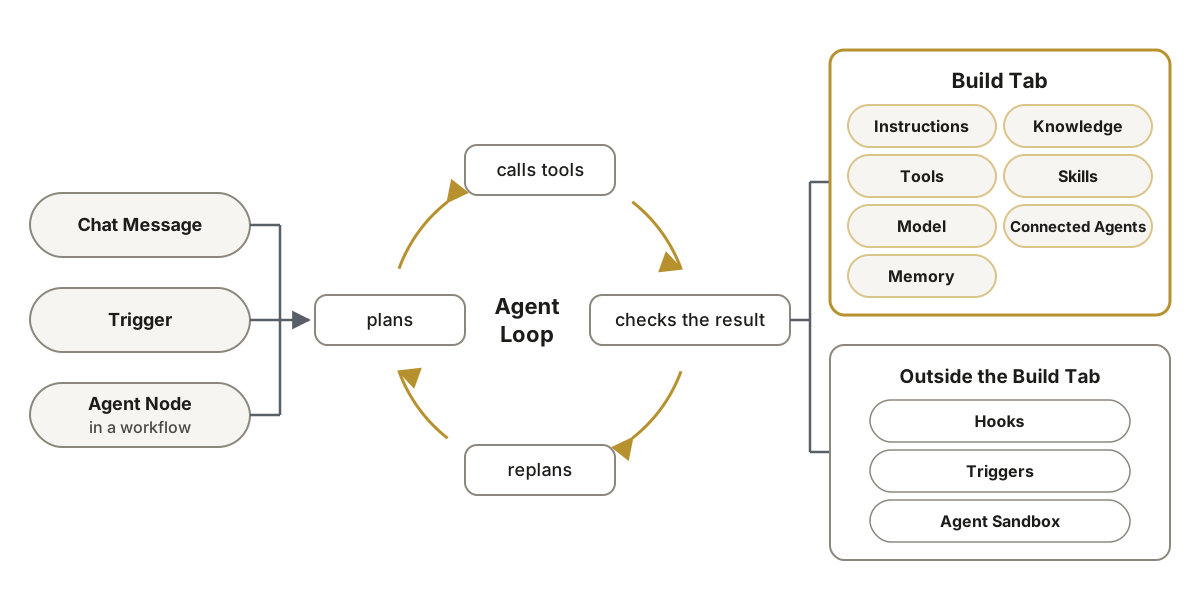
The Build Tab, the agent’s workspace, holds Instructions, Knowledge, Tools, Skills, the Model, Connected Agents and Memory. There the team enters its Instructions, the directions to the agent, and adds websites, files, SharePoint, Dataverse Tables and Graph Connectors as Knowledge, the same kinds of sources as in the Standard Agent. It attaches connectors, MCP servers and Workflows as Tools, and under Model it picks the agent’s model. The team puts the know-how the agent applies into Skills. Other agents that the agent calls are linked as Connected Agents. Memory keeps what should outlast a session.
Three parts sit outside the Build Tab. Hooks run Workflows at six fixed points of the Agent Loop, every time their event occurs. Triggers, in preview, start the agent when something happens in a connected service, for example when an email arrives. In the Agent Sandbox, a secured container that Copilot Studio manages, the agent runs code. The work that went into the team’s Topics and Agent Flows finds its new place in these parts.
The building blocks of a Standard Agent in the Microsoft Copilot Harness
A Standard Agent holds eight kinds of building blocks: Topics; Entities and Variables, which capture values from the conversation and carry them forward; Power Fx, the formula language for the logic that works with these values; Adaptive Cards as forms in the chat; Prompts that hand a model a single task; Agent Flows; and Child Agents, the subagents within an agent. None of these building blocks moves to the Microsoft Copilot Harness under its own name. What the team finds there for its Topics, Agent Flows and Prompts follows from the purpose of each building block.
For Topics the rule is: if a Topic carries know-how the agent applies, it becomes a Skill. If it runs fixed steps, it becomes a Workflow Tool: a Workflow the agent picks by its name and its Description. If it has to happen on every turn, meaning every round of the conversation, or on every tool call, it becomes a Hook. System Topics such as Conversation Start and On Error become Hooks on Start (pre-loop) and Error.
The table shows, for all eight building blocks, what takes their place in the Microsoft Copilot Harness.
| Standard Agent | Microsoft Copilot Harness |
|---|---|
| Topics | Skill, Workflow Tool or Hook |
| Entities | Workflow Inputs the agent asks for in the conversation |
| Variables | Workflow Inputs and Outputs, a Hook’s Metadata, Memory |
| Power Fx | Branching and Data Steps in the Workflow, Code Interpreter |
| Adaptive Cards | No Card Designer; the agent stays Standard |
| Prompts | Skills and the Code Interpreter |
| Agent Flows | Workflows |
| Child Agents | Skills or a Connected Agent |
The team rebuilds its Agent Flows as Workflows, because Agent Flows are not converted. Such a Workflow starts with When an agent calls the flow and ends with Respond to the agent. During the conversation, the agent asks for the values that Entities capture in a Standard Agent and passes them on as Workflow Inputs. The new harness does not support Custom Entities that a team has defined itself. The logic from Power Fx moves into the Branching and Data Steps of a Workflow or into the Code Interpreter, which the agent uses in the Agent Sandbox to calculate exactly.
There is no Card Designer for Adaptive Cards. The agent asks for input in the conversation and shows results as formatted text or as a generated file. In a Workflow, the Request for information step asks a person outside the chat. An agent that needs its Adaptive Cards stays Standard. That is why a team often runs both kinds of agents side by side.
For the Adaptive Card gap there is an open standard: with the MCP Apps Extension, an MCP server shows its own UI directly in the chat, and Claude recently began using it to run a whole app inside the conversation . I would like Microsoft to adopt the extension in the Microsoft Copilot Harness soon.
The migration path for Standard Agents
There are three routes for migrating an agent. All three leave the team’s Standard Agent unchanged and create a new agent next to it.
The Upgrade, in preview, starts on the Copilot Studio Home Page with a request such as upgrade my HR Agent and creates the new agent as a card whose name ends in (Upgraded). It carries over the Instructions, the Tools and the Suggested Prompts the agent offers its users. The team adds the Knowledge Sources to the new agent again, because they are never part of the Upgrade.
For the Rebuild by hand, the team creates a new agent with the GitHub Copilot badge and adds every capability itself. This route takes more time and is the one Microsoft’s guidance describes. Along the way the team decides what the new agent needs for each journey, meaning each path from a user’s first sentence to the result.
The third route runs in the terminal, from Claude Code or the GitHub Copilot CLI. The command /mcs-assistant:migrate creates the new agent, describes the Standard Agent and puts a migration plan forward for approval; once the team approves it, the command builds the new agent and pushes it to Copilot Studio. The mcs-assistant plugin comes from the Microsoft Copilot Studio CAT Team and has the status Work in Progress.
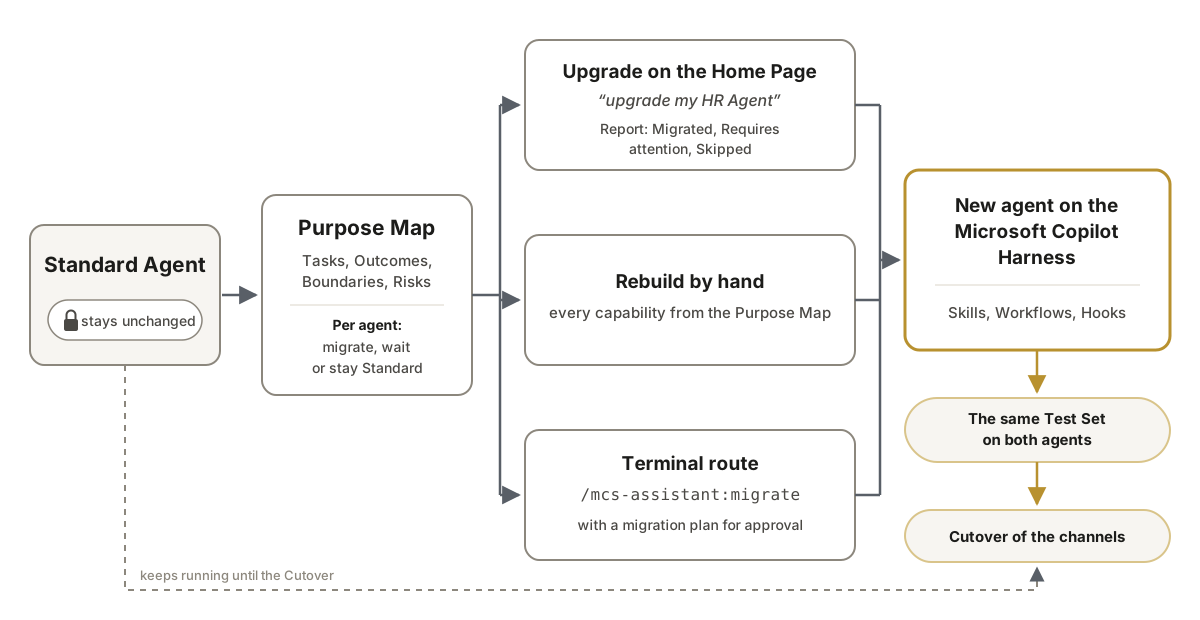
At the end, the same journeys run on both agents: in Preview, the new agent’s test environment, and in the Test Pane of the Standard Agent. The migration is done when the new agent passes its Core Journeys, the most important journeys of the original, backed by a Test Set. The Test Set holds the test questions the team checks every change against. Until then the Standard Agent stays in service and answers users’ questions as usual. After that comes the Cutover, when the users switch to the new agent.
The migration check for Copilot Studio agents
You do not have to take this path alone. The integrations.at migration check takes stock of each of your agents and settles whether it migrates now, waits or stays Standard, and how many credits it needs to run in the new harness. The basis is each agent’s Purpose Map, with its tasks, the purpose of its Topics and flows, and the test questions it can be measured against. For every agent that migrates, the route and the Test Set are fixed before any credit goes into a rebuild.
Alexander Kastil guides the check. He has worked with Copilot Studio since it first appeared and has gone through all three routes himself, from the Upgrade on the Home Page to the Terminal route. Microsoft has certified him as an Agentic AI Business Solutions Architect and as an AI Transformation Leader. Next to these are his Microsoft Applied Skills “Create agents in Microsoft Copilot Studio” and “Enhance agents with autonomous capabilities”, all of them verifiable in his public transcript on Microsoft Learn . The check starts with a free initial consultation, which you can request on the Copilot Studio page.
The first step with the Microsoft Copilot Harness
Three steps fit into this week:
- List your agents in Copilot Studio and note the kind of each one. An agent with pages such as Topics in its navigation is a Standard Agent; an agent in the Microsoft Copilot Harness opens with the tabs Build, Preview, Evaluate and Monitor.
- Write one line for each agent: what it is for and which test questions your team checks it with.
- Check with your administrators which environment (the area of the Power Platform where your agents live) has a billing plan through which Copilot Credits are billed, and whether Stop usage is turned on for your agents.
The migration check starts with these three lists. For teams that migrate their agents themselves, there is the class Automate Business Processes with Copilot Studio & Copilot Cowork .
The making of this article
Alexander Kastil commissioned this article and approved the text. Agents in Claude Code wrote it from his material on Copilot Studio. The text was written with AI assistance.